Video calls
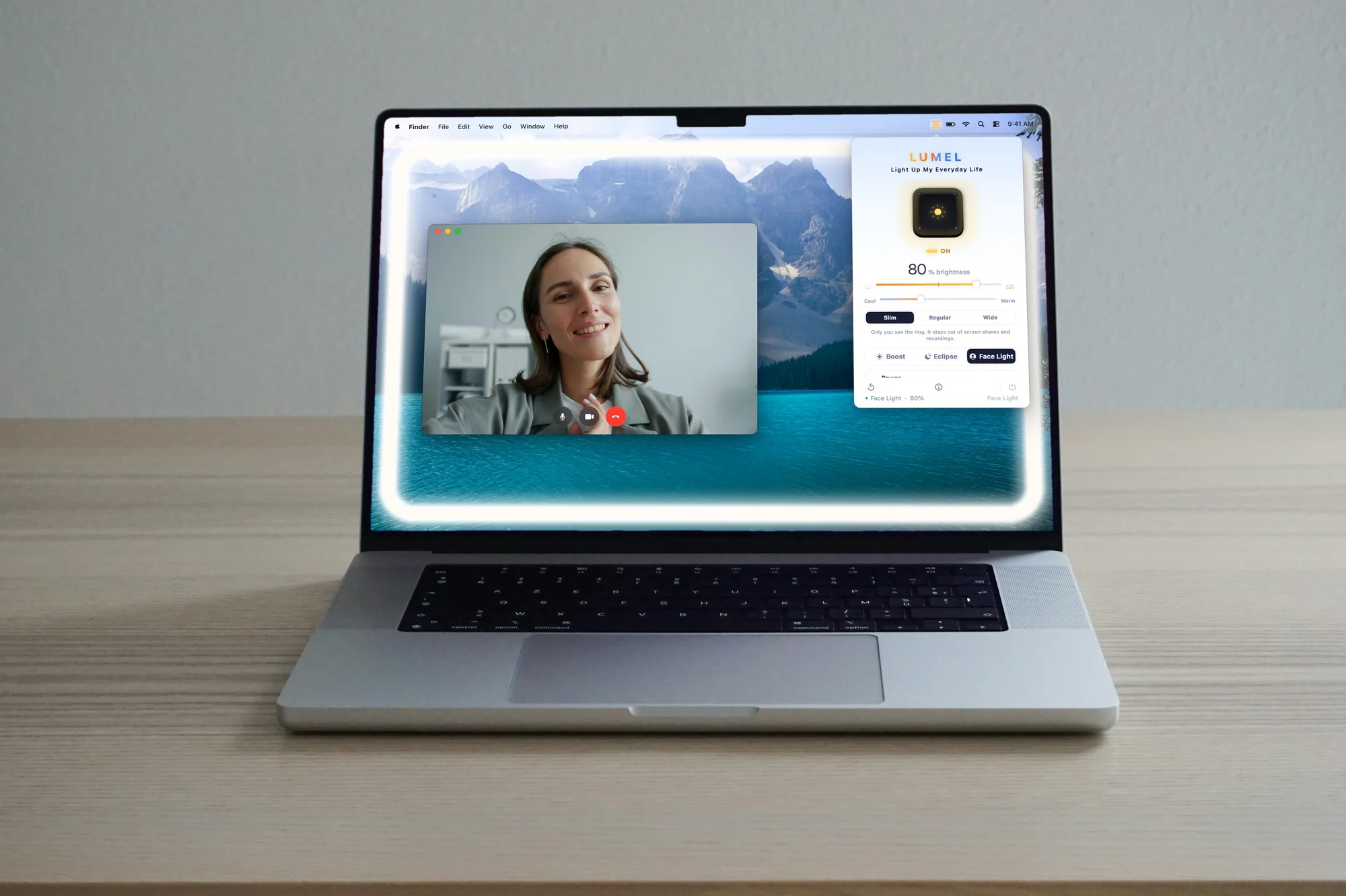
A ring light, built into your Mac screen
Laptop cameras make faces look flat and grey in a normal room. LUMEL's Face Light puts a soft ring of light around your screen so you look like yourself on FaceTime, Zoom, Teams, and Meet, and it stays out of your screen shares.

New in LUMEL 1.1 · Free on any Mac · No account
Why you look dark on calls
A webcam exposes for the whole frame. With a window or lamp behind you and nothing lighting you from the front, your face ends up as the darkest thing in the picture. A dark app or a dimmed screen makes it worse, because the screen is often the only light facing you.
A ring light fixes this by putting soft light right where the camera looks from. Your Mac already has a large, bright panel facing you; Face Light turns its edges into that light, and keeps the middle free for the call.
How Face Light works
Open LUMEL from the menu bar, choose Face Light, and press the big button. Only you see the ring: clicks pass through it, and it is excluded from screen capture.
Soft, not harsh
A wide, feathered glow around the screen edges lights your face evenly, without the hot spot of a single lamp.
Warm or cool
Match your room: from soft amber to cool daylight, with a brightness slider.
Slim, Regular, or Wide
Choose how much screen the ring takes. A slim ring leaves almost all of your screen for the call.
Tip: sit facing the screen, raise the laptop to eye level if you can, and pick a warmth that matches the room so your skin tones look natural.
Face Light, answered
Does the ring show up when I share my screen?
No. The Face Light window is excluded from screen capture, so it does not appear in screen shares, screenshots, or recordings. The people on your call see your face lit, not the ring.
Does it work with Zoom, Teams, FaceTime, and Google Meet?
Yes. Face Light lights you from the screen itself, so it works with any video app or website. Nothing needs to be installed in the call app.
Will it get in the way of what I'm doing?
No. The ring sits inside the visible screen area below the menu bar, never covers the menu bar or Dock, and lets every click pass straight through. It also fades back near your pointer so it never blocks what you're about to click.
Which Macs does it work on?
Face Light works on any Mac display LUMEL supports, including the MacBook Air. On supported XDR displays, such as 14- and 16-inch MacBook Pro models, LUMEL Pro can make the ring brighter than standard white.
Is it free?
Yes. Face Light at standard brightness is part of LUMEL's free tier, with no time limit. LUMEL Pro, a one-time $4.99 purchase, makes it XDR-bright on supported displays and unlocks full-screen Boost.
Can I turn it on automatically before a meeting?
Yes. LUMEL adds actions to the Shortcuts app, including Turn On LUMEL with the Face Light mode, so you can run it from a shortcut, an automation, or Siri. Your own keyboard shortcut toggles it from any app.
Does it replace a real ring light?
For most laptop calls in an ordinary or dim room, it is a big improvement. A dedicated light or a window in front of you can still be brighter, and Face Light works well alongside them.
Look like yourself on every call.
Face Light is free in LUMEL, alongside Eclipse night dimming. LUMEL Pro makes it XDR-bright for a one-time $4.99.
Working late after the call? Dim your Mac below the minimum →